GuideAnts Quick Setup and Tour
GuideAnts is a free, open AI operating system, and the only prerequisite to run it is Docker. That is the whole setup. No special hardware, no cloud account, no configuration files - in this walkthrough the install takes minutes on an ordinary laptop, the stack comes up at localhost:5107, and the feature tour that follows costs ten cents.
Get it from the repo
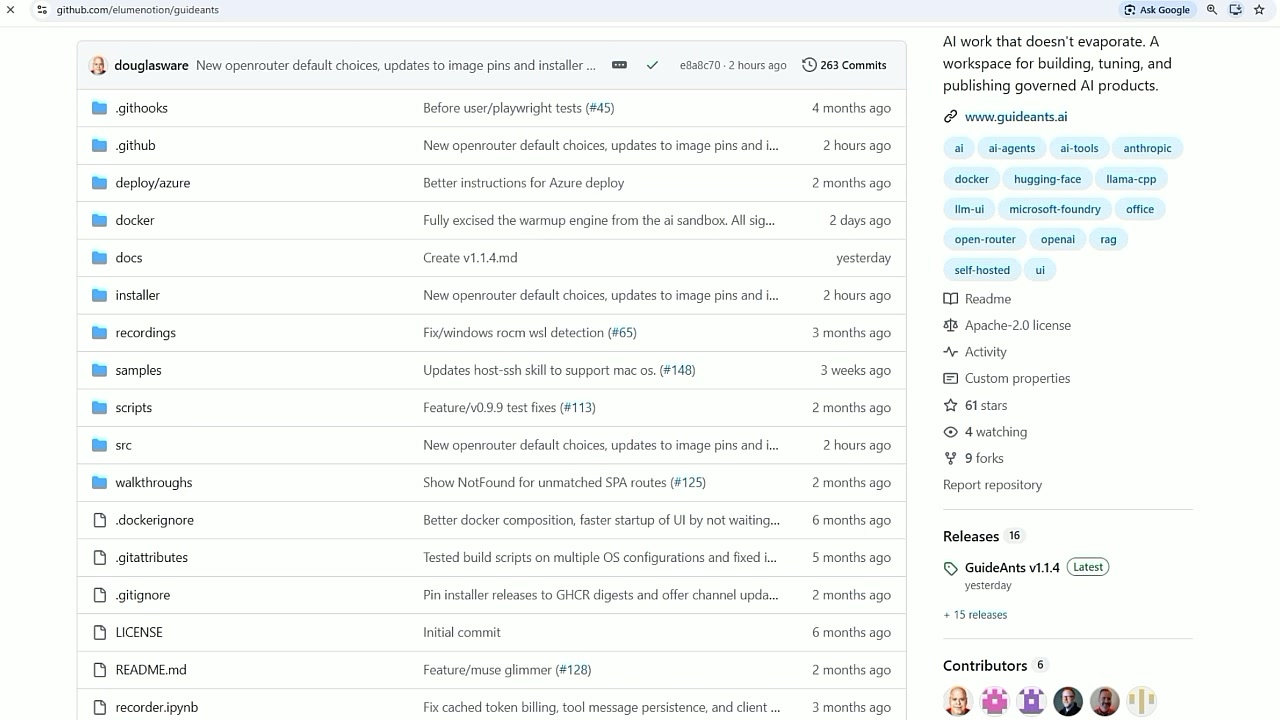
Start at the repo. Go to the latest release, download the release zip, and extract it to wherever you want to install GuideAnts. That folder is where all the files you create and upload to GuideAnts are stored.
Then open a terminal - PowerShell on Windows, Terminal on Mac - from inside that folder.
Prerequisites
The zip you download is small and universal - one bundle for Windows, macOS, and Linux. It contains the launcher scripts and Docker Compose fragments, and Docker downloads the actual application images on first run - so the download itself is tiny, and the heavy lifting happens after you decide what to run.
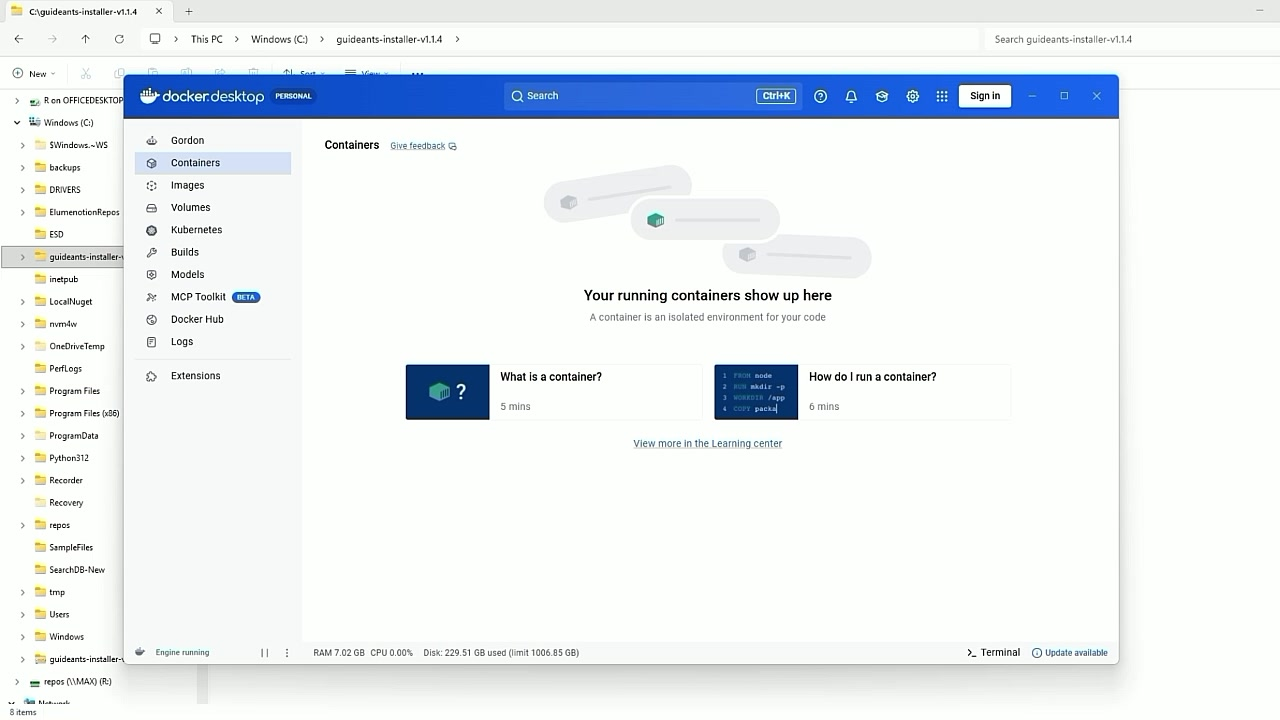
The one hard requirement, on every platform, is Docker:
- Windows: Docker Desktop. It needs WSL2 as its backend, and the launcher checks this for you: it runs
wsl --statusand warns if you do not see Default Version: 2. If you don’t, runwsl --set-default-version 2, and make sure Docker Desktop has WSL integration enabled for your distro (Settings - Resources - WSL integration). - macOS: Docker Desktop. If macOS blocks the launcher (Gatekeeper), right-click the script and choose Open, or run
xattr -d com.apple.quarantine guideants.sh. - Linux: Docker Engine 24 or later with the Compose plugin. The legacy
docker-composev1 is not supported.
You may think: well, that is kind of a pain, why do I have to install Docker? Because it lets you use everything without having to really do any configuration to speak of. Docker makes it super easy, and you will be glad you installed it.
What the machine needs. Before it pulls anything, the launcher reports your memory and free disk, and warns if Docker has less than 16 GiB of RAM. Plan disk around the running total the wizard shows - for the selection in the video:
| What you choose | Images | Approx. size |
|---|---|---|
| Database: bundled layout | guideants-webapi-ui-mssql | ~7.3 GB |
AI backend: slim (sandbox, no local model runtime) | guideants-ai | ~4.3 GB |
| DocLing - document extraction and OCR | docling-serve | ~7.1 GB |
| DocumentServer - in-app Office open/edit | documentserver | ~7.2 GB |
| PlantUML - diagrams | plantuml | ~0.7 GB |
| SearXNG - web search | searxng | ~4.2 GB |
| Total (the video’s selection) | ~30.8 GB |
Those are image sizes. Model weights download later, inside the AI container, and only if you pick a backend that runs local models.
No GPU is required for what I demonstrate - the models run on OpenRouter. Driver checks run only when you select a local GPU backend: NVIDIA needs driver R580 or newer with CUDA 13 or later, AMD needs ROCm 6.0 or later. On Apple Silicon, the images run as linux/amd64 under emulation, and the slim backend is the recommended choice.
Run the installer
The install is a single command, and it walks you through a handful of prompts. Run the entrypoint for your machine from inside the extracted folder: guideants.cmd on Windows, guideants.sh on macOS and Linux (after chmod +x), or bash guideants.sh in WSL or Git Bash.
Prefer guideants.cmd over calling the .ps1 directly on Windows - it first clears Mark-of-the-Web from the extracted scripts, because a download-blocked PowerShell script is the classic post-unzip failure.
I choose bundled, which is strictly speaking the only thing you need to run it. I also choose an AI sandbox - that is where agent and skill code run safely, isolated from your machine - and I take the defaults for the rest so the demo shows a few of the features that come out of the box.
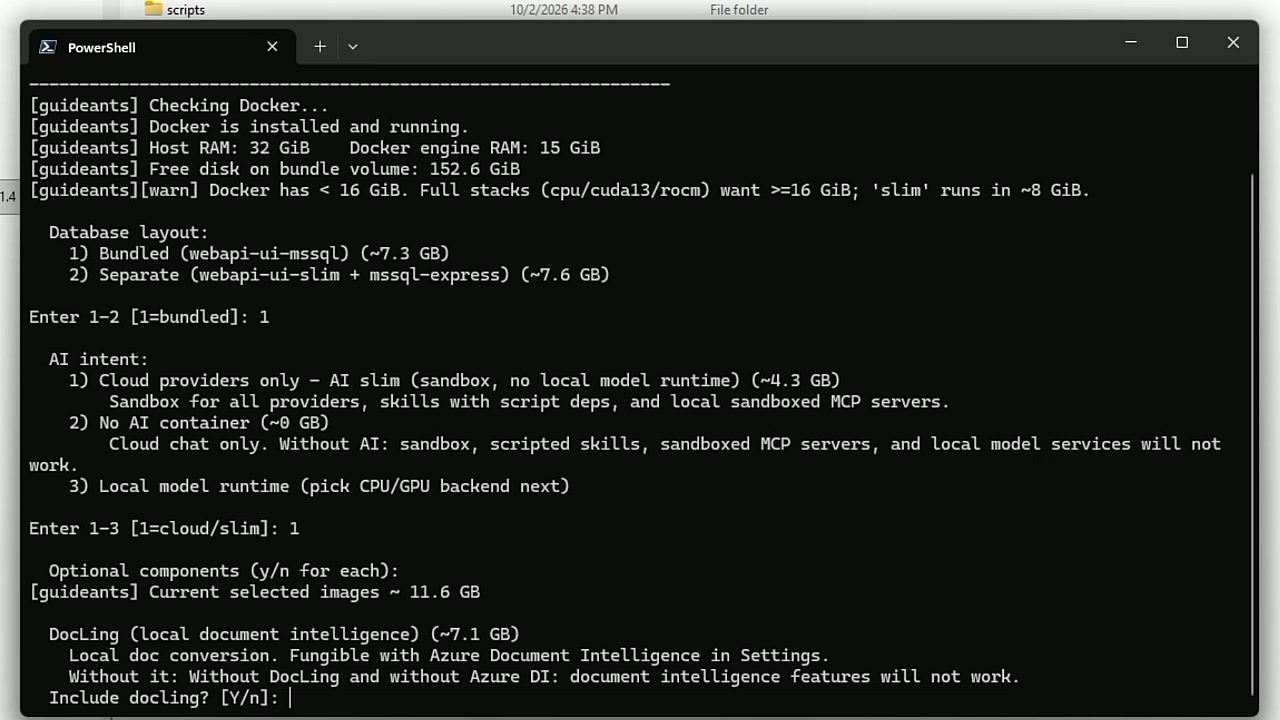
Expect roughly 30 GB of image downloads. What that buys you: internet search with a search engine, an entire office suite - Word documents, PowerPoint presentations, Excel spreadsheets - the ability to edit images and video, automatic text extraction, and search indexing for documents of all kinds.
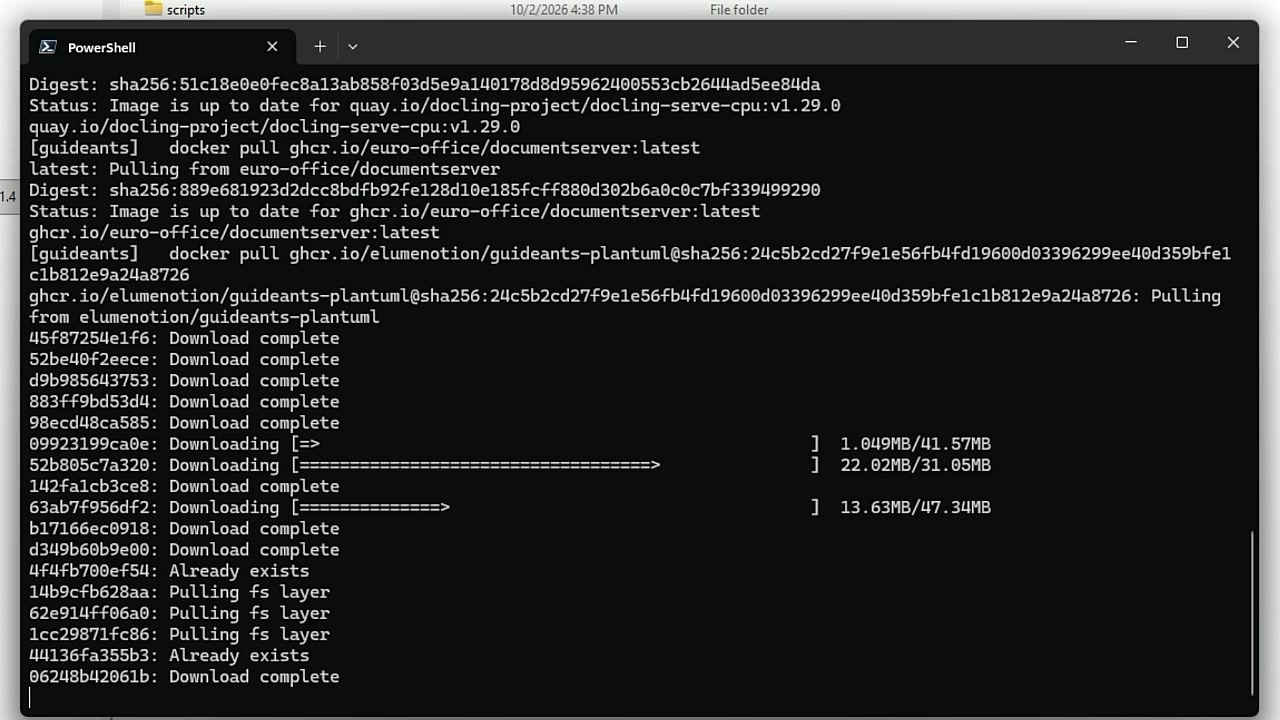
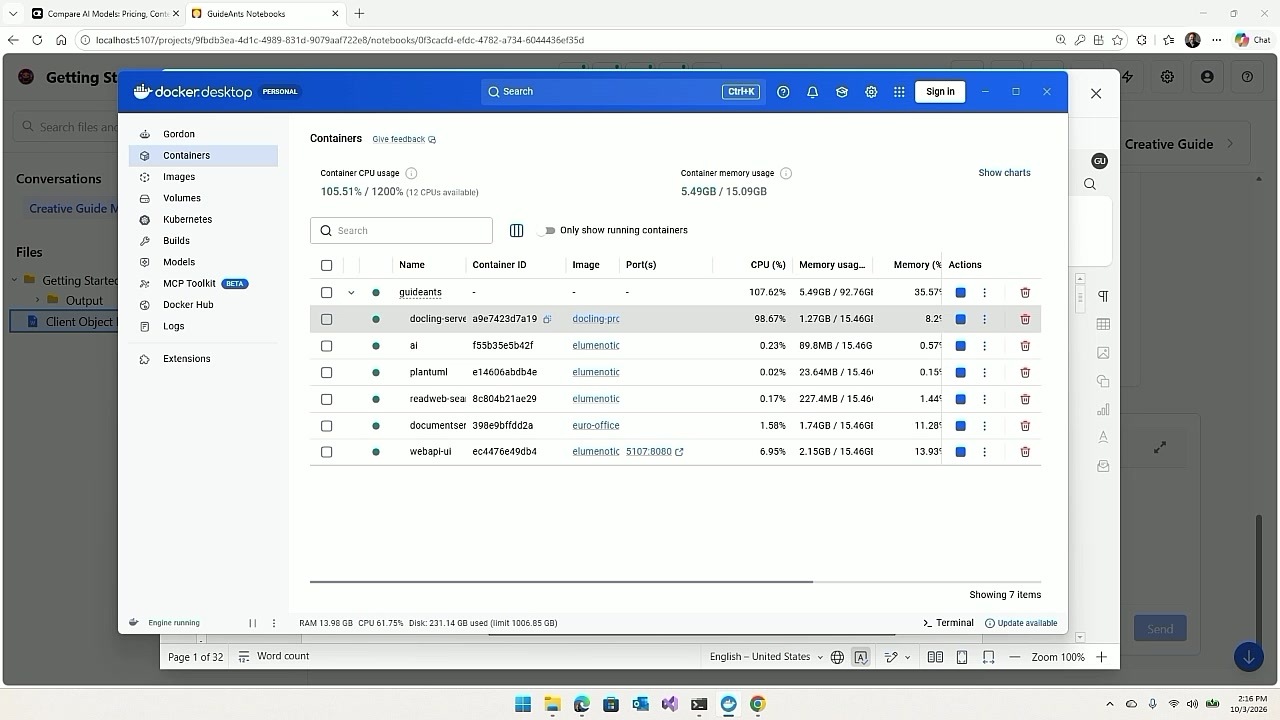
When the pull finishes, the installer starts the stack. Six services come up: guideants-webapi-ui, guideants-ai, docling-serve, documentserver, plantuml, and searxng.
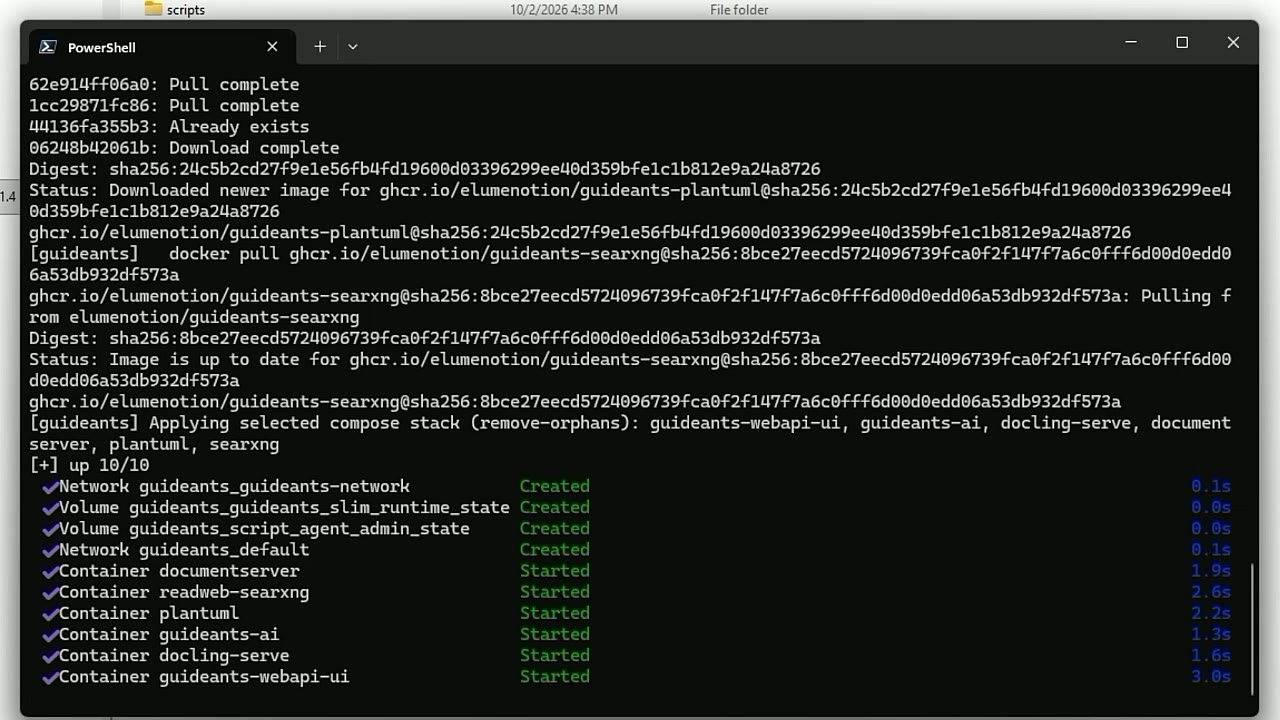
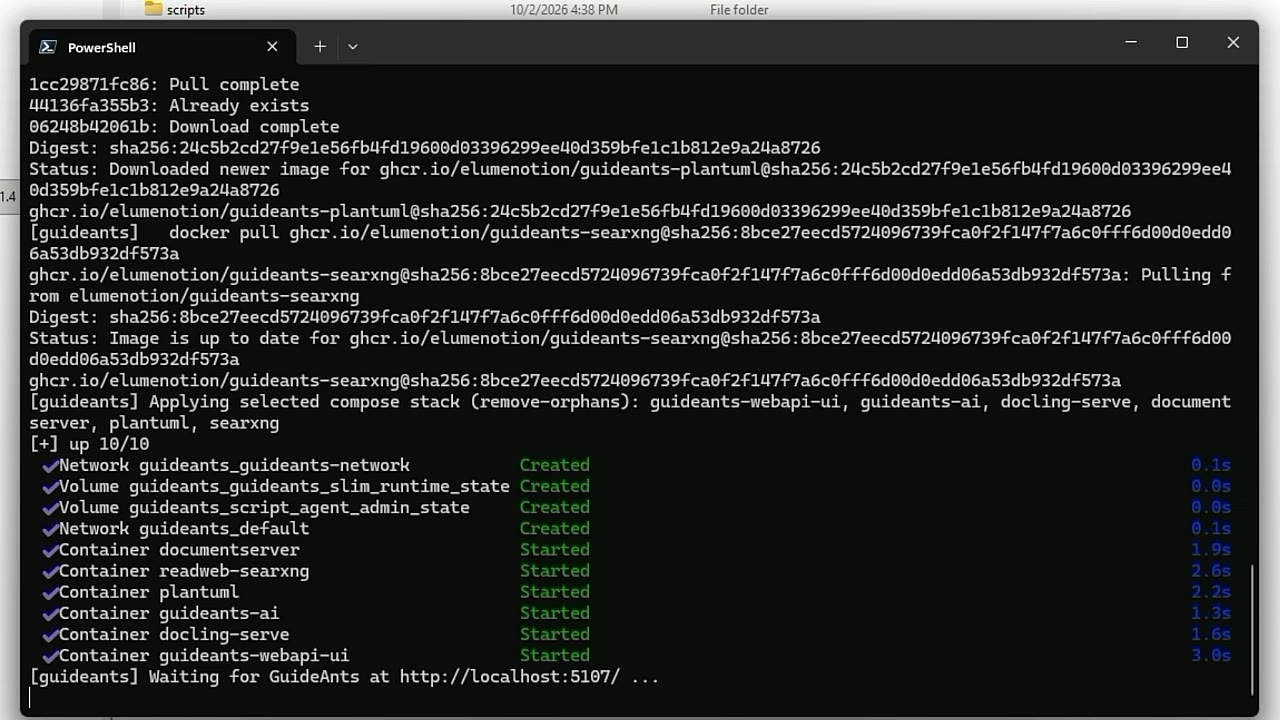
It then waits for the web UI, and the stack is running at http://localhost:5107. The first spin-up takes a minute because it creates the database and the initial configuration and content.
First run: account and models
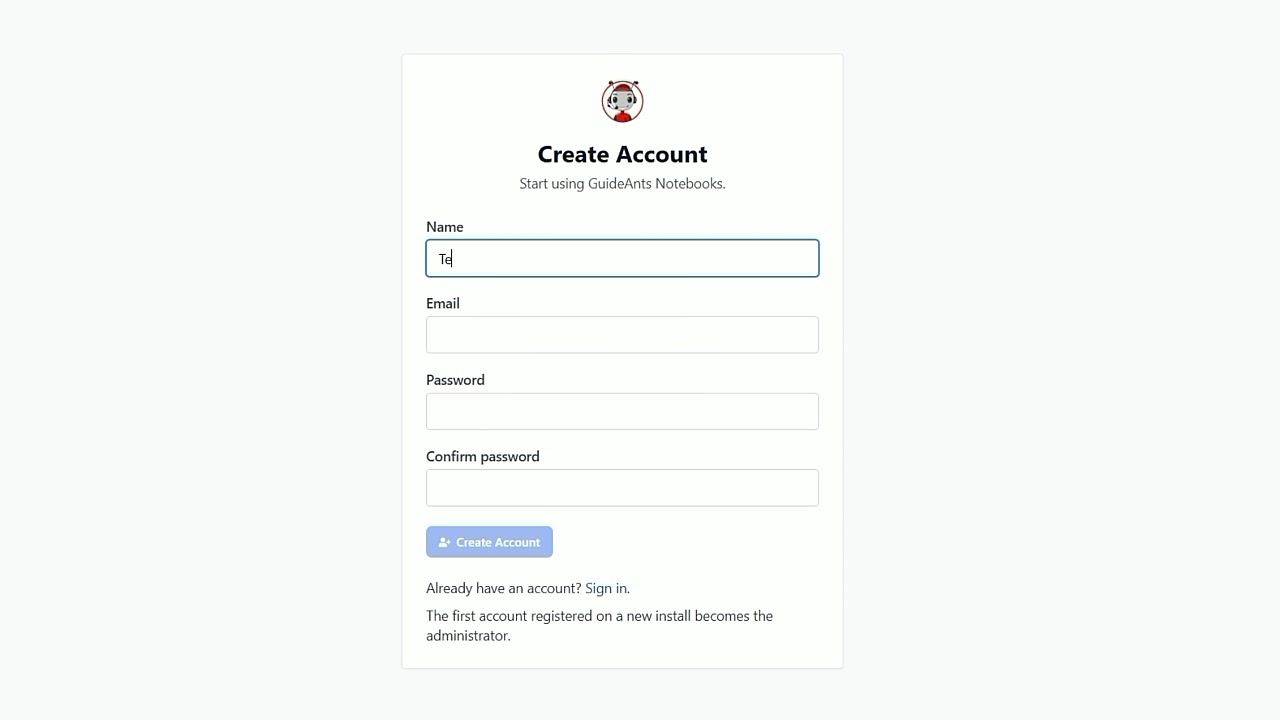
The first time you open the app, you create an account.
Then configure a model provider. I configure OpenRouter - it needs an API key. I like OpenRouter because it has lots and lots of models, and often new models are free for a time. The catalog at recording time had 466 text models, including OpenAI, Anthropic, and open models you can run yourself.
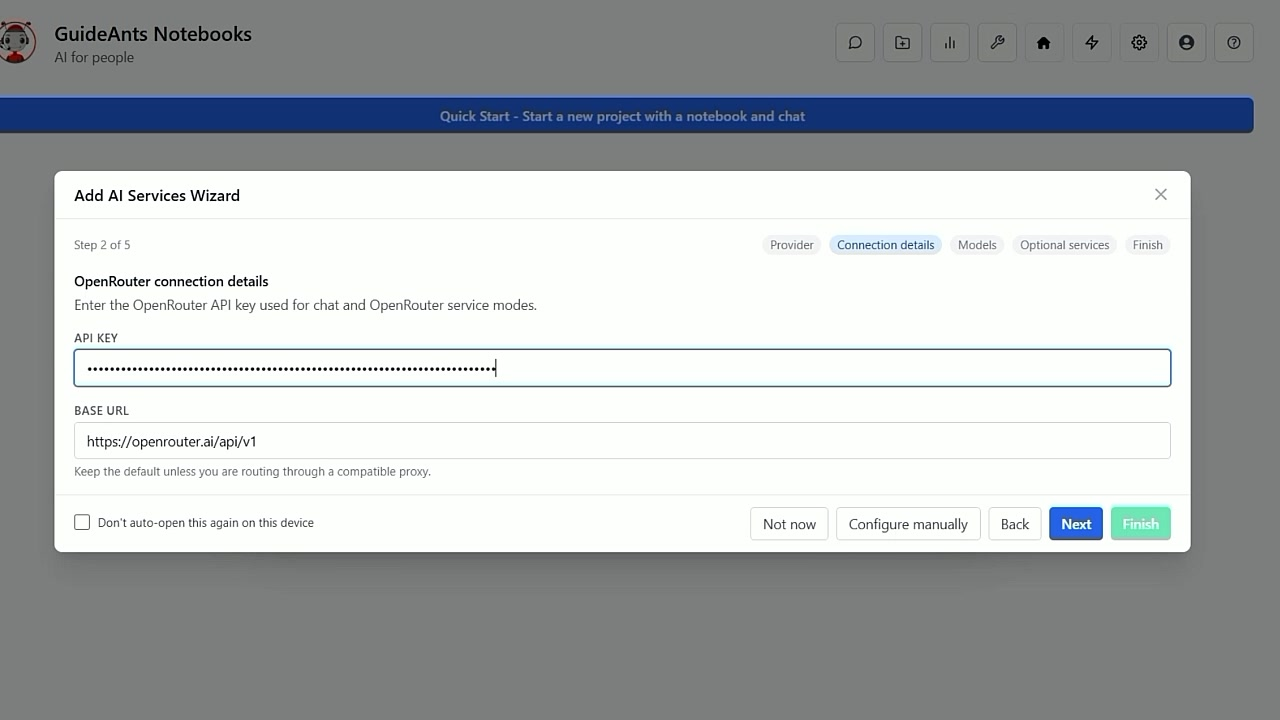
With that and an account you can do everything GuideAnts can do. You do not need any special hardware - this machine is a simple laptop. I add the DeepSeek model, which is the default at recording time (new models come out, old ones retire, and the defaults change), plus an embeddings model, an image-generation model, a transcription model, and a speech model. Hit finish, and everything is working.
The tour
Voice input
The first test: use the microphone and say something. “Say hello.” The app transcribes it and chats back. If that works, the speech path is working.
Make an image of a duck
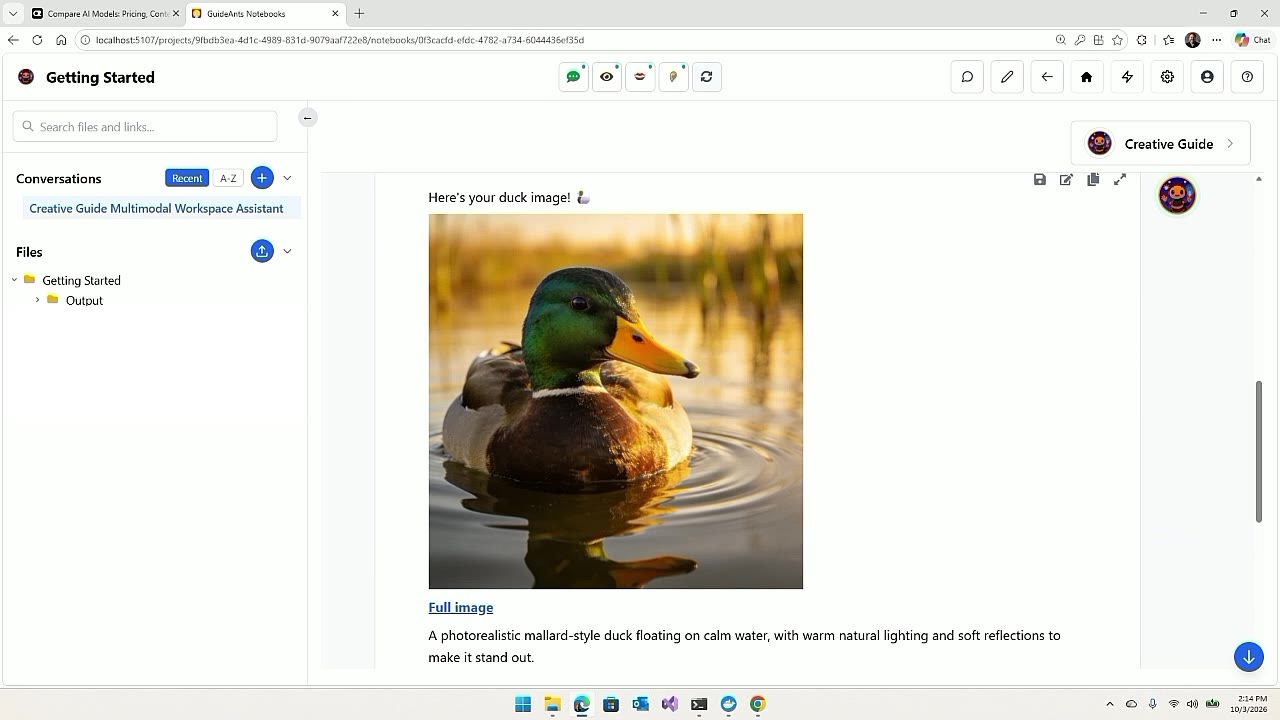
Second test: “Make an image of a duck.” It works because the image model is configured - and I could have lots of different choices in that dropdown to switch between. Some could be local, some on OpenRouter, some on Microsoft Foundry. I can mix and match. It depends on what I am doing.
Your documents become answers
Now upload a sample file. In the video it is a Word document I wrote over fifteen years ago - very out of date, which makes it a fair test. The system extracts the text, ingests it, indexes it, and makes it searchable. You can see the docling-serve container doing the OCR.
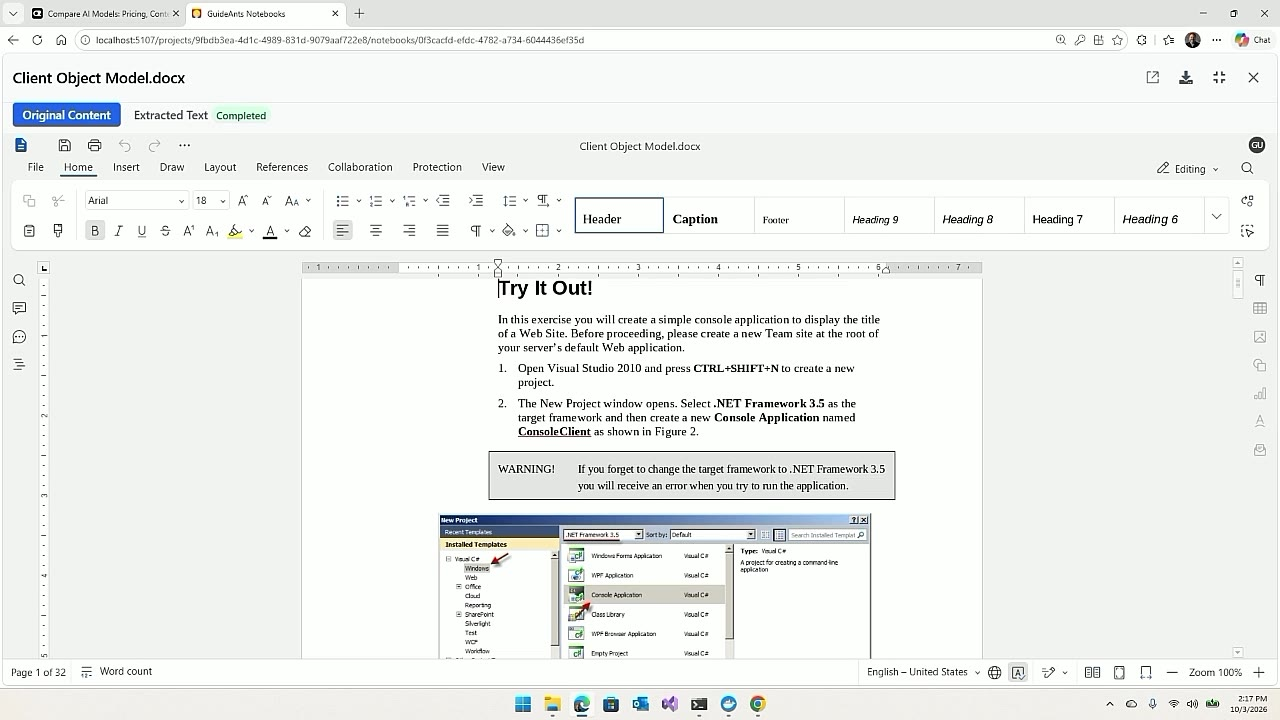
And double-clicking the file opens it in an in-app Office editor - the documentserver container from the install list - where I can edit the document right there. That is the same engine behind the office suite: Word documents, PowerPoint presentations, and Excel spreadsheets, opened and edited inside the app.
Now make a new conversation and ask the Creative Guide: “How do I use the client object model?”
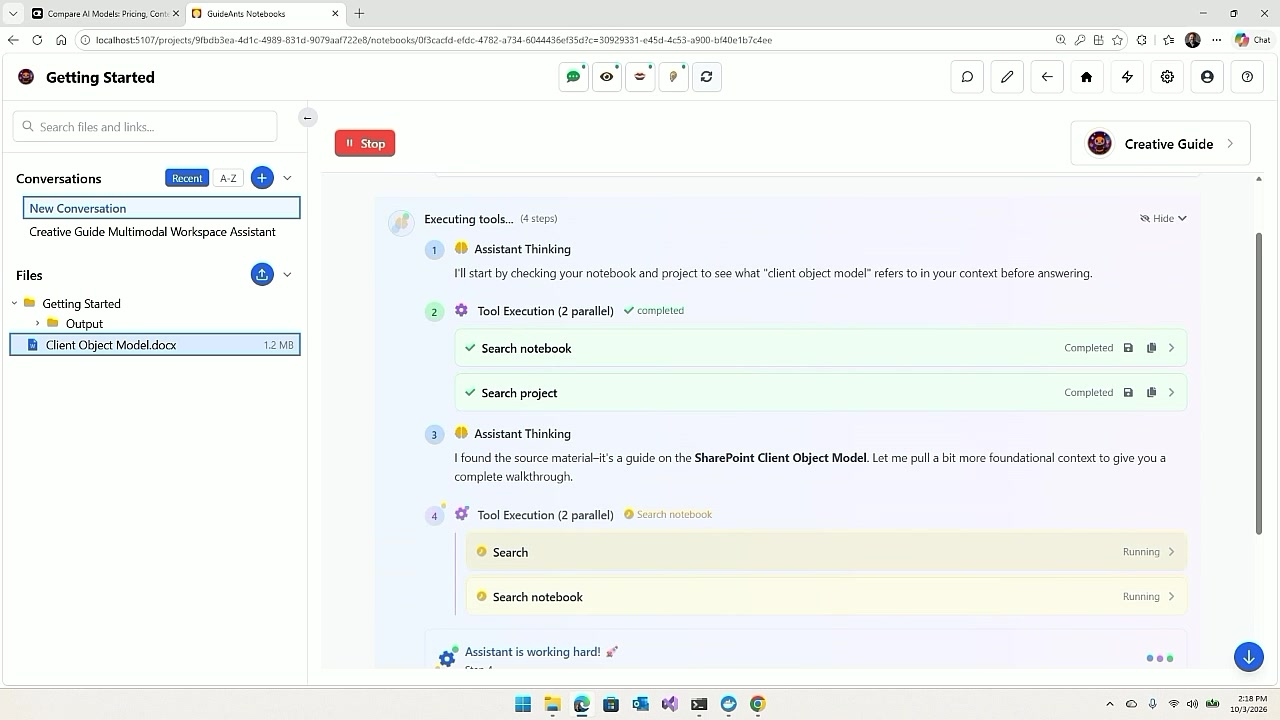
It searches the notebook first - and it is really fast - and the information it found was inside that Word document. That is because we have an embeddings model configured on OpenRouter, and DocLing to handle the different document kinds. This works with a PDF file or an Excel spreadsheet - lots of different file formats.
It is also doing a web search at the same time, using SearXNG - configured with Brave Search, DuckDuckGo, Google, Start Page, and Yahoo, plus image search. The GuideAnts stack can be configured with even more, but they are turned off by default.
And the content it searched? A document I wrote over fifteen years ago, very out of date - but it did a pretty good job answering from it anyway.
Stopping it
stop_guideants.cmd (or ./stop_guideants.sh) takes the stack down. Your projects, database, and files live in Docker volumes and under docker/volumes/, so they survive stops and updates.
What you have
- One prerequisite. Docker. Everything else is bundled, and it runs with no configuration.
- Isolation by default. Agent and skill code run in the AI sandbox, not on your machine.
- One stack, localhost:5107. Search, office suite, image generation, document extraction, speech, and a database in a single install.
- Your documents become answers. Upload once; the guides search them.
We configured GuideAnts, and it was pretty easy - wasn’t it?
The video
The full recording is here. Timestamps:
- [00:00] Intro: GuideAnts, the free, open AI operating system - and how easy it is to set up.
- [00:16] Get it from the repo: latest release - download the zip - extract to your GuideAnts folder.
- [00:45] Prerequisites: Docker on every platform - plus WSL2 on Windows, which Docker Desktop sets up. Why: everything runs with zero configuration.
- [01:10] Run
.\GuideAnts.cmd: choosebundled(the only required option) plus an AI sandbox - where agent and skill code run safely. - [01:45] What you get with the full stack: web search, an office suite (Word / PPT / Excel), image and video editing, text extraction, and search indexing. About 30 GB of downloads.
- [02:04] Running at http://localhost:5107. First spin-up takes a minute (database plus initial content).
- [02:19] First run: create an account, then configure OpenRouter - it needs an API key.
- [02:57] No special hardware - this demo runs on a simple laptop. Add the DeepSeek model (the default).
- [03:29] Live demos: mic test (“say hello”), then “make an image of a duck” - models mixable across local, OpenRouter, and Microsoft Foundry.
- [04:04] Upload a sample file - the DocLing container OCRs it, indexes it, and makes it searchable.
- [04:46] New conversation - Creative Guide: “How do I use the client object model?”
- [05:08] The answer came from that Word document - embeddings model on OpenRouter plus DocLing. Works with PDFs, Excel, and more.
- [05:34] …and it is also doing a web search via SearXNG (Brave, DuckDuckGo, Google, StartPage, Yahoo).
- [06:22] Activity view, last 30 minutes: the whole demo cost 10 cents - the duck image was 4.
- [06:43] Wrap-up: we have configured GuideAnts - and it was pretty easy.